
Firmware Vulnerability Management using NCM
Firmware vulnerabilities can lead to critical security issues that could put your networks at risk. However, Site24x7's Network Configuration Manager (NCM) helps you identify firmware vulnerabilities proactively and take corrective action, like upgrading your firmware, before any attacks occur.
How it works
Site24x7's NCM scans your network for firmware vulnerabilities and identifies risks based on vulnerability data provided by the National Institute of Standards and Technology (NIST) vulnerability management. The Firmware Vulnerabilities Dashboard displays the firmware versions, the number of exposed devices, and the list of vulnerabilities. You can click any vulnerability to check if a patch is available and check the reference links displayed on the screen to understand how to protect your device against the vulnerability. This minimizes vulnerabilities on your network devices and safeguards them against possible exploits.
Here's a video to help you get started:
Categorizing firmware vulnerabilities
NCM classifies firmware vulnerabilities into four categories: Critical, Important, Moderate, and Low. The severity of the vulnerabilities is calculated based on the Base Score.
The Base Score is calculated based on the following metrics:
- Exploitability metrics: The ease of exploiting the vulnerability, consisting of components such as the Attack, Complexity, and Authentication.
- Impact metrics: The impact of the vulnerability on your organization, consisting of elements like Confidentiality, Integrity, and Availability
The score categorization is as follows:
| Base score | Severity |
| 9.0 - 10.0 | Critical |
| 7.0 - 8.9 | Important |
| 4.0 - 6.9 | Moderate |
| 0 - 3.9 | Low |
Supported devices
At present, Network Configuration Manager supports firmware vulnerability management for devices from the following vendors:
- Citrix
- MikroTik
- Check Point
- F5
- Blue Coat
- Infoblox
- Riverbed
- Huawei
- NETGEAR
- HPE
- NetScreen
- Cisco
- Juniper
- Palo Alto
- HP
- Aruba
- Arista
- Fortinet
- Dell
Viewing vulnerabilities for each device
To view firmware vulnerabilities in your network:
- Log in to your Site24x7 account.
- Navigate to Network > NCM and click the device for which you wish to view the firmware vulnerabilities.
- Click the Vulnerabilities tab to view the relevant details, such as the Common Vulnerabilities and Exposures ID number (CVE ID), Base Score, CVE Type, Severity, State, and Detected Time (Fig. 1).
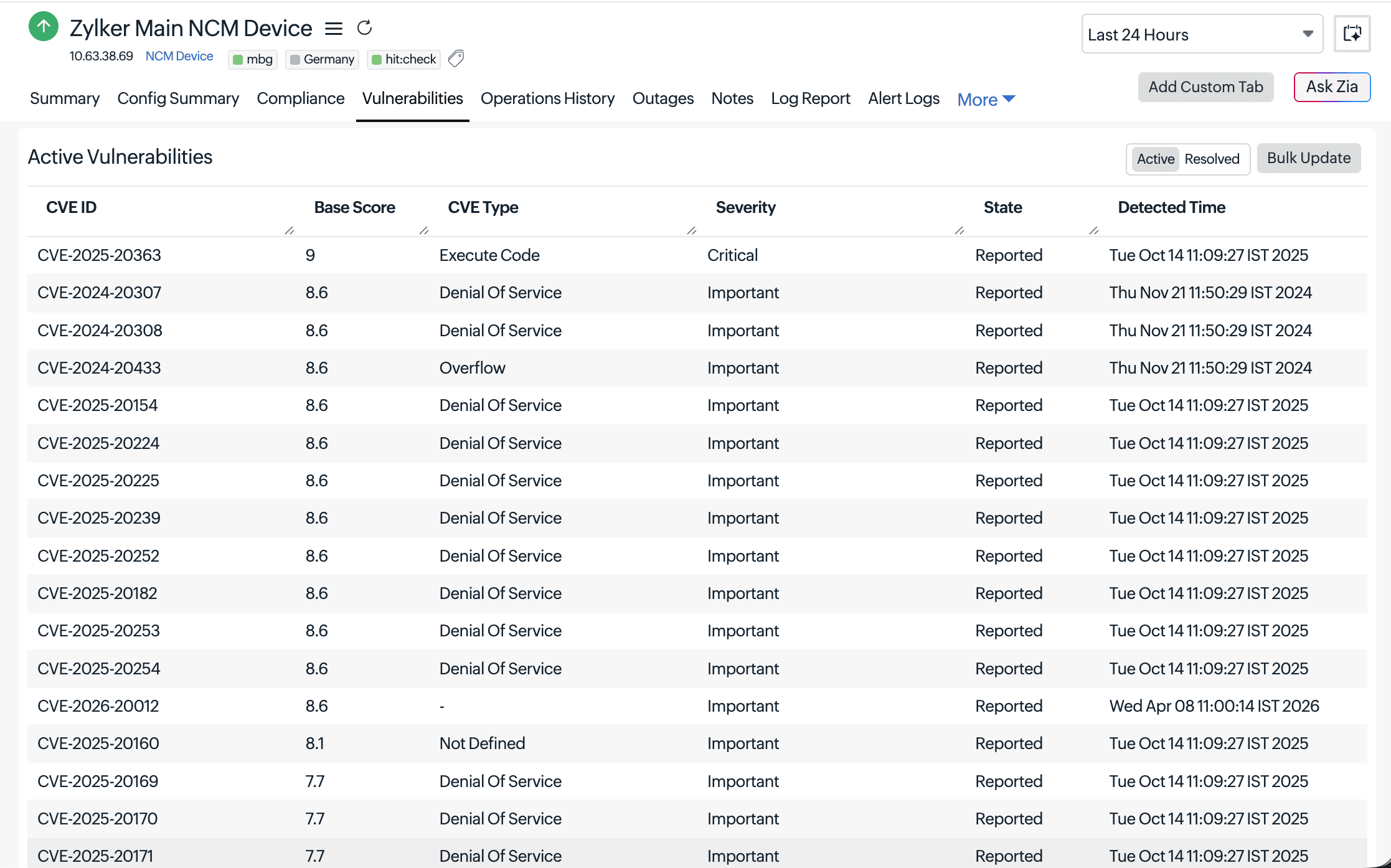
Figure 1. Viewing firmware vulnerabilities. - Use the toggle in the top-right corner of the table to switch between Active and Resolved vulnerabilities. Click Bulk Update to update the Status of vulnerabilities in bulk (Fig. 2).
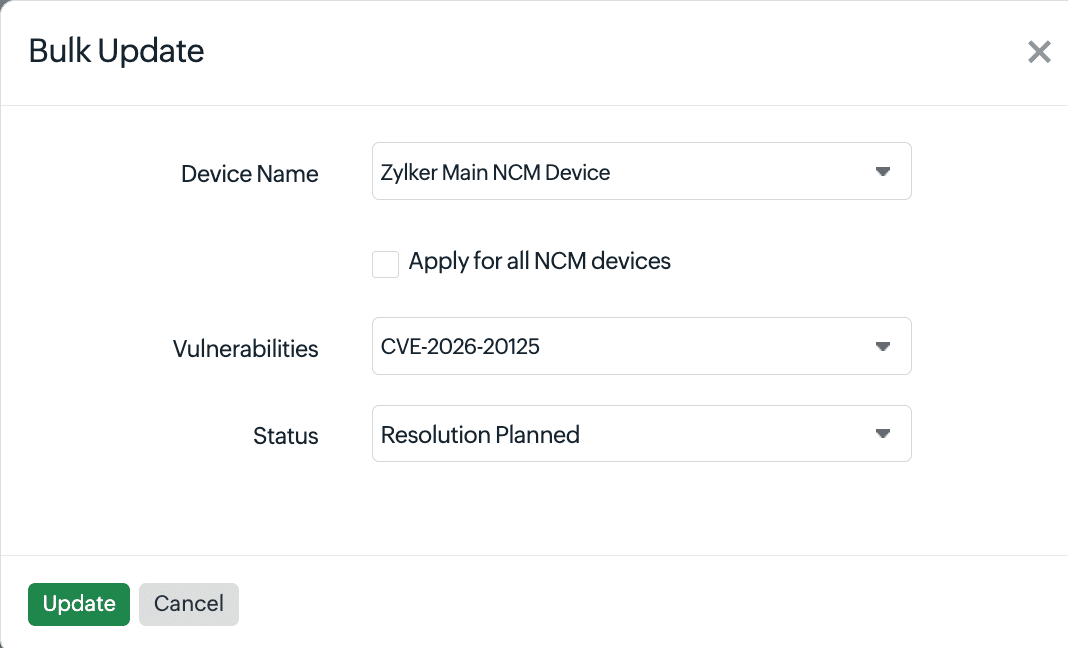
Figure 2. A bulk update of the vulnerabilities' status. - Click each record to view details about each vulnerability in that device (Fig. 3).
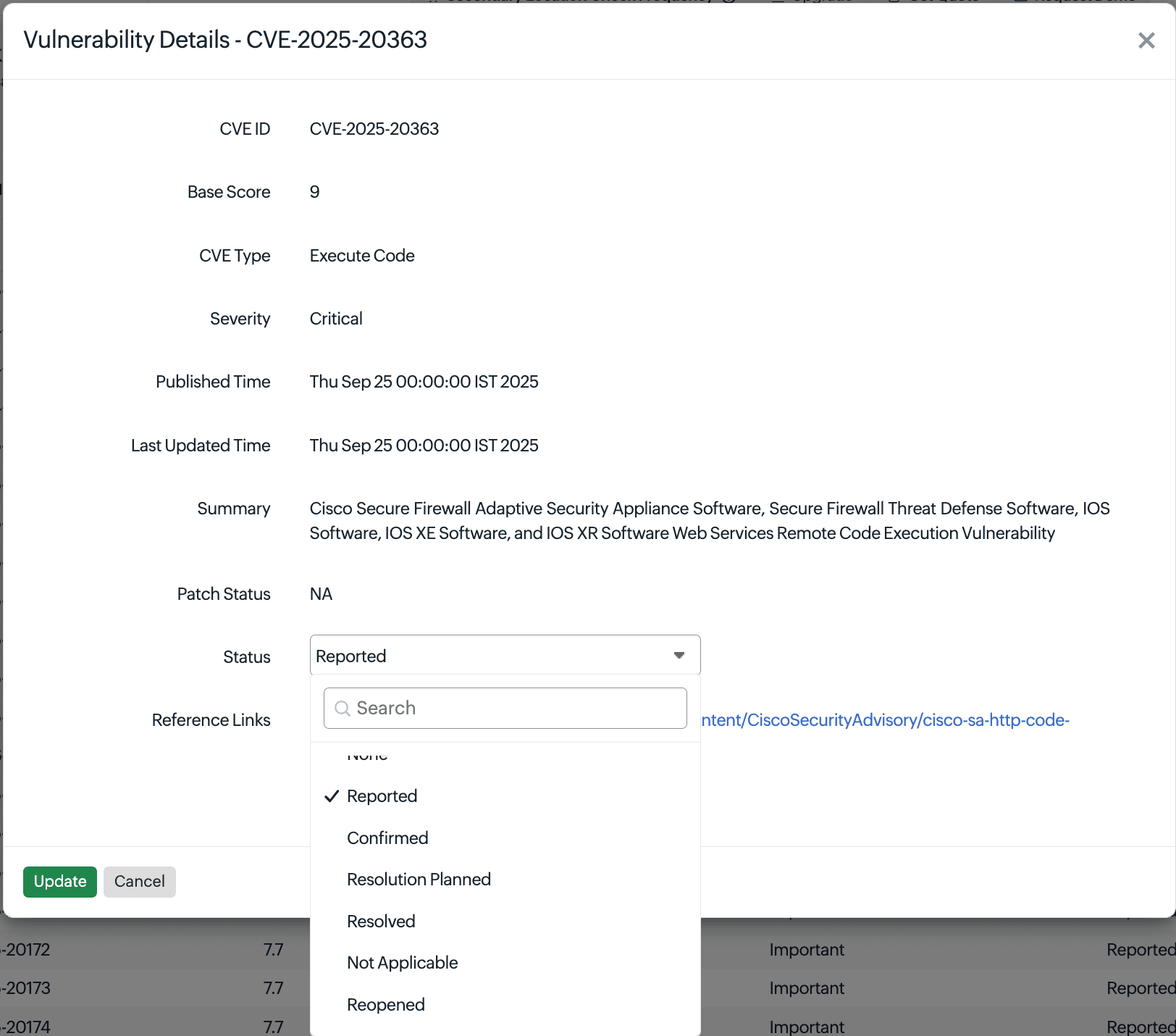
Figure 3. Vulnerability details. - Update the Status of the vulnerability from this page. The available options are Reported, Confirmed, Resolution Planned, Resolved, Not Applicable, and Reopened.
- Navigate to the Inventory tab to add or modify the threshold criteria for new vulnerabilities.
Firmware Vulnerabilities Dashboard
- Navigate to Network > NCM > Firmware Vulnerabilities to view the vulnerability details for all the monitors that you've added in NCM.
- Click Expand View in the top-right corner of the page to expand all vulnerabilities and view more details.
- Click Share As to share the details as a report.
- Select Vulnerabilities to view all CVE IDs and vulnerabilities in your network devices according to data provided by NIST vulnerability management. Click Critical, Important, Moderate, or Low to view vulnerabilities under each category.
- Search the vulnerabilities according to the CVE ID, Base Score, CVE Type, Severity, Patch Status, or Affected Devices for faster access to a record.
- Select each record to view additional details about each vulnerability (e.g., which device is affected).
- Click View Details to view detailed information about each vulnerability record, as shown in Figure 3.
Figure 4. The Firmware Vulnerabilities Dashboard showing the Total Vulnerabilities.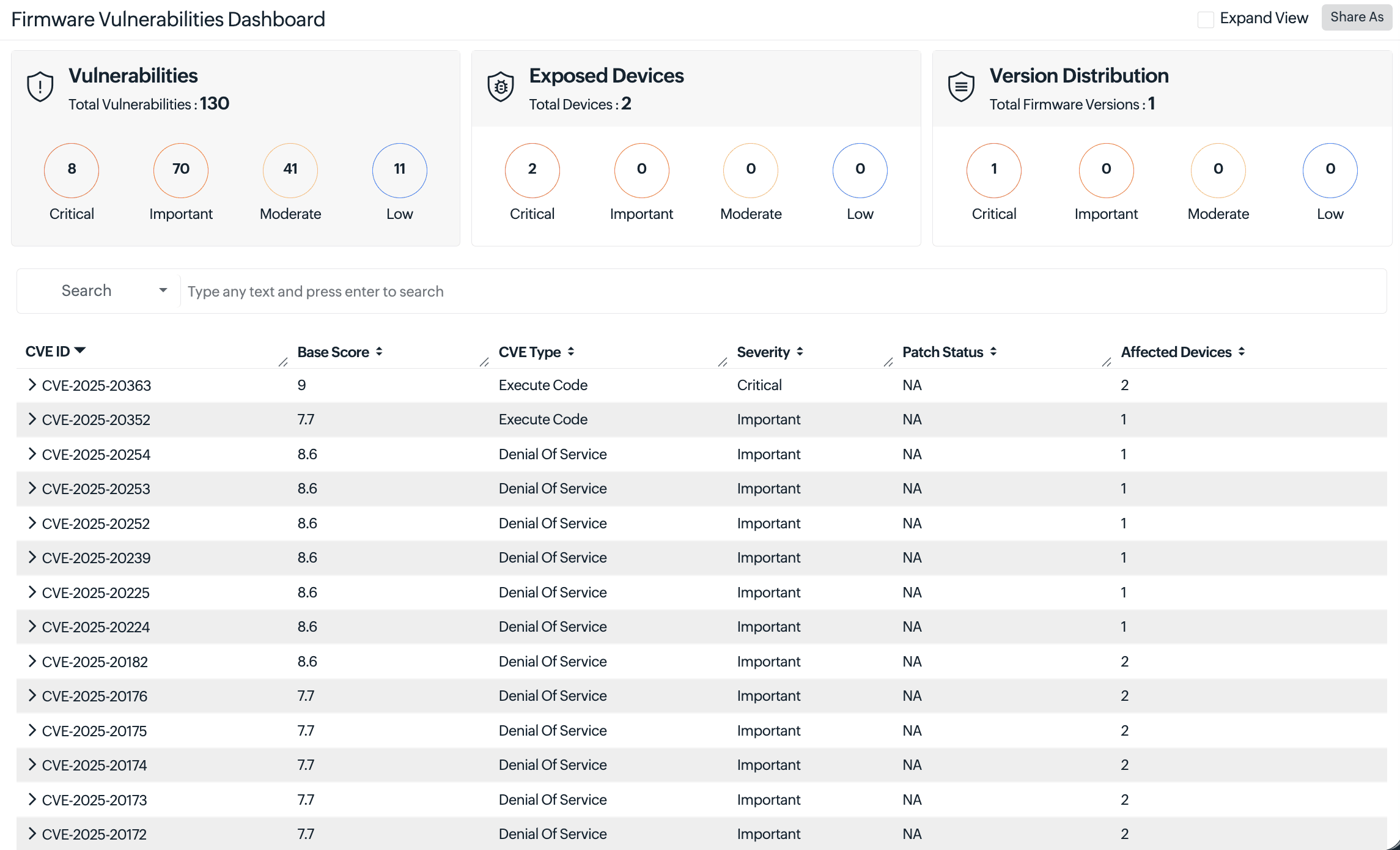
- Select Exposed Devices to view all the devices that are exposed to firmware vulnerabilities. Click Critical, Important, Moderate, or Low to view devices under each category.
- Search the devices according to the Monitor Name, Vendor, Firmware Version, Series, Model, or Vulnerabilities Count for faster access to a record.
- Select each record to view the list of vulnerabilities on that device. The total vulnerabilities on each device is available under the Vulnerabilities Count.
- Click the CVE ID to view detailed information about each vulnerability record, as shown in Figure 3.
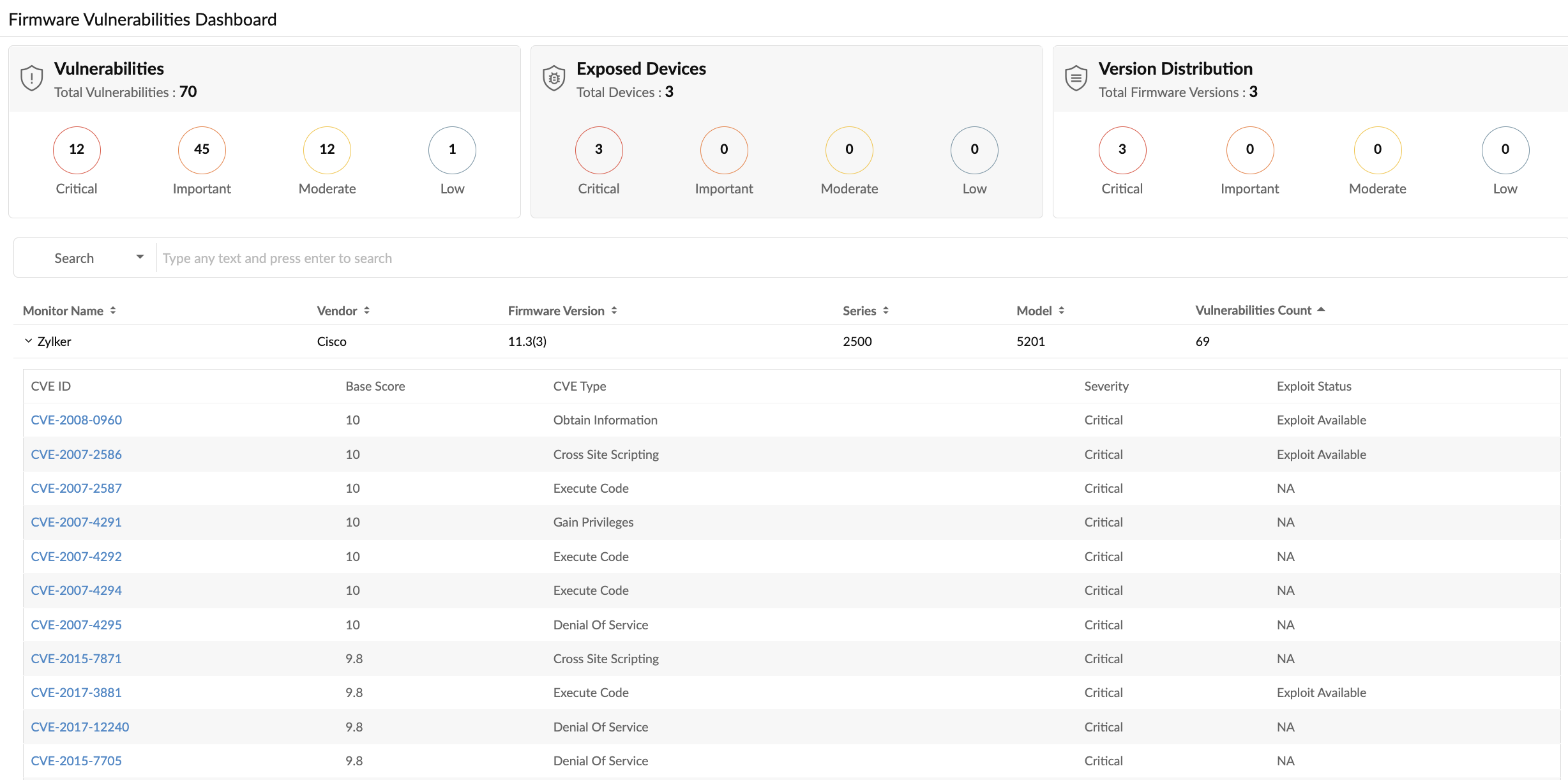
Figure 5. The Firmware Vulnerabilities Dashboard showing Exposed Devices.
- Select Version Distribution to view the versions that have active vulnerabilities. Click Critical, Important, Moderate, or Low to view devices under each category.
- Search devices according to Vendor or Firmware Version.
- Select each record to view the list of vulnerabilities on devices by that vendor. The total vulnerabilities on each device is available under the Vulnerabilities Count.
- Click the CVE ID to view detailed information about each vulnerability record, as shown in Figure 3.