All SLO Summary Report
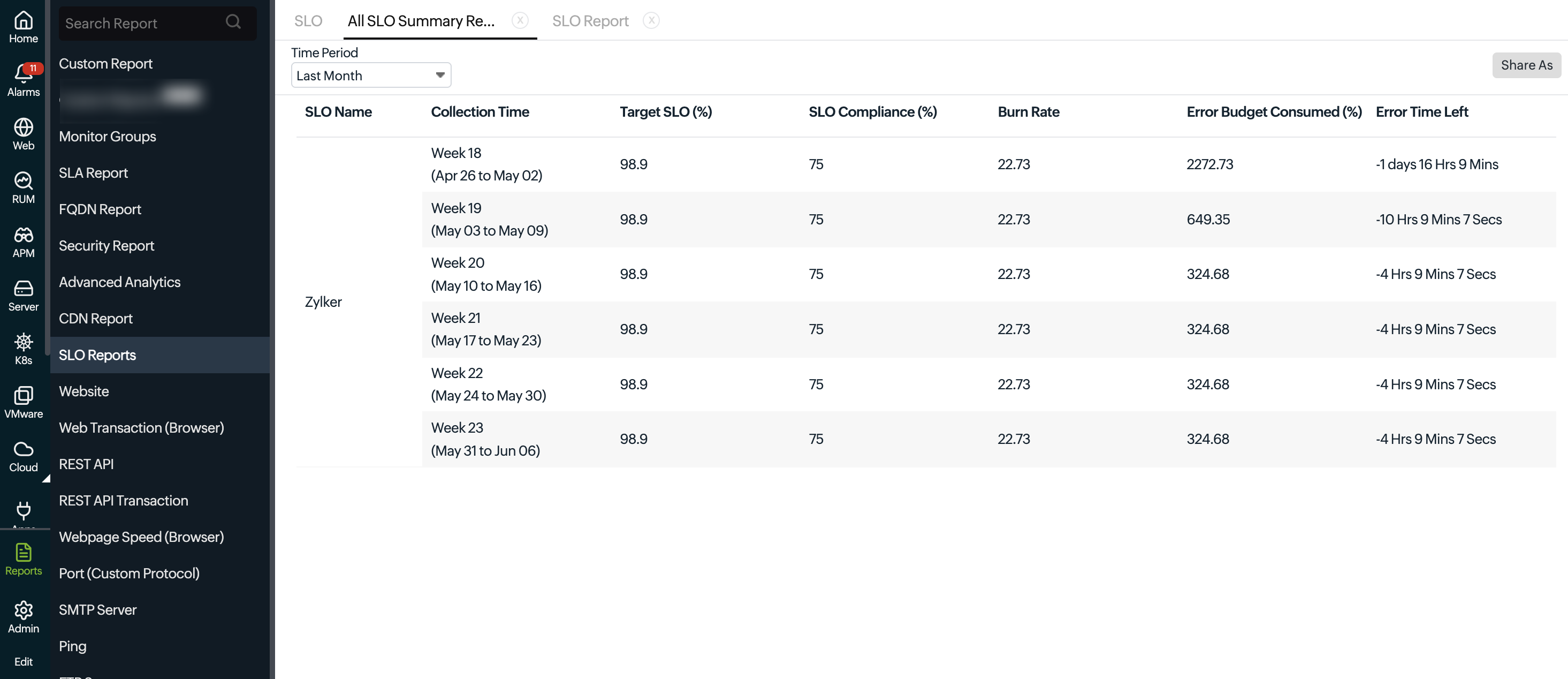
Our All SLO Summary Report helps site reliability engineers manage SLOs and track trends across the account. This report provides comprehensive SLO details, including Monitor Name, Burn Rate, error budget consumed, Error Time Left, SLO Compliance (%), and Target SLO (%).
Generate an All SLO Summary Report
Follow the steps below to generate the All SLO Summary Report:
- Log in to your Site24x7 account.
- Navigate to Reports > SLO Reports > All SLO Summary Report.
- Choose the Time Period from the drop-down list.
- Get the metrics of all the SLOs available.
Interpret the All SLO Summary Report
Understand and analyze the All SLO Summary Report for insights into service performance and compliance.
The following details can be inferred from the report:
- SLO Name: The name that uniquely identifies the SLO.
- Collection Time: The specific time period (week and date range) during which data for the SLO was collected.
- Target SLO (%): The predefined performance or availability goal that a service aims to achieve within a specific period.
- SLO Compliance (%): The percentage of time a service has met its defined SLO within a given period.
SLO compliance (%) = (good events / total events) * 100
- Burn Rate: The speed at which the error budget is being consumed for the SLO.
- Error Budget Consumed (%): The percentage of allowable downtime that has been used.
- Error Time Left: The remaining allowable downtime before breaching the SLO.
The Share As button allows you to share the report via email or download it as a CSV or PDF file. The Share With option allows you to send data directly to third-party tools. This option is available only when a third-party integration has been enabled for the selected tools.
- Third-party tool: Choose the third-party tools you want to send the report to.
- Message header: A default message header is provided. Modify it as needed to change how the header appears in the message notification.
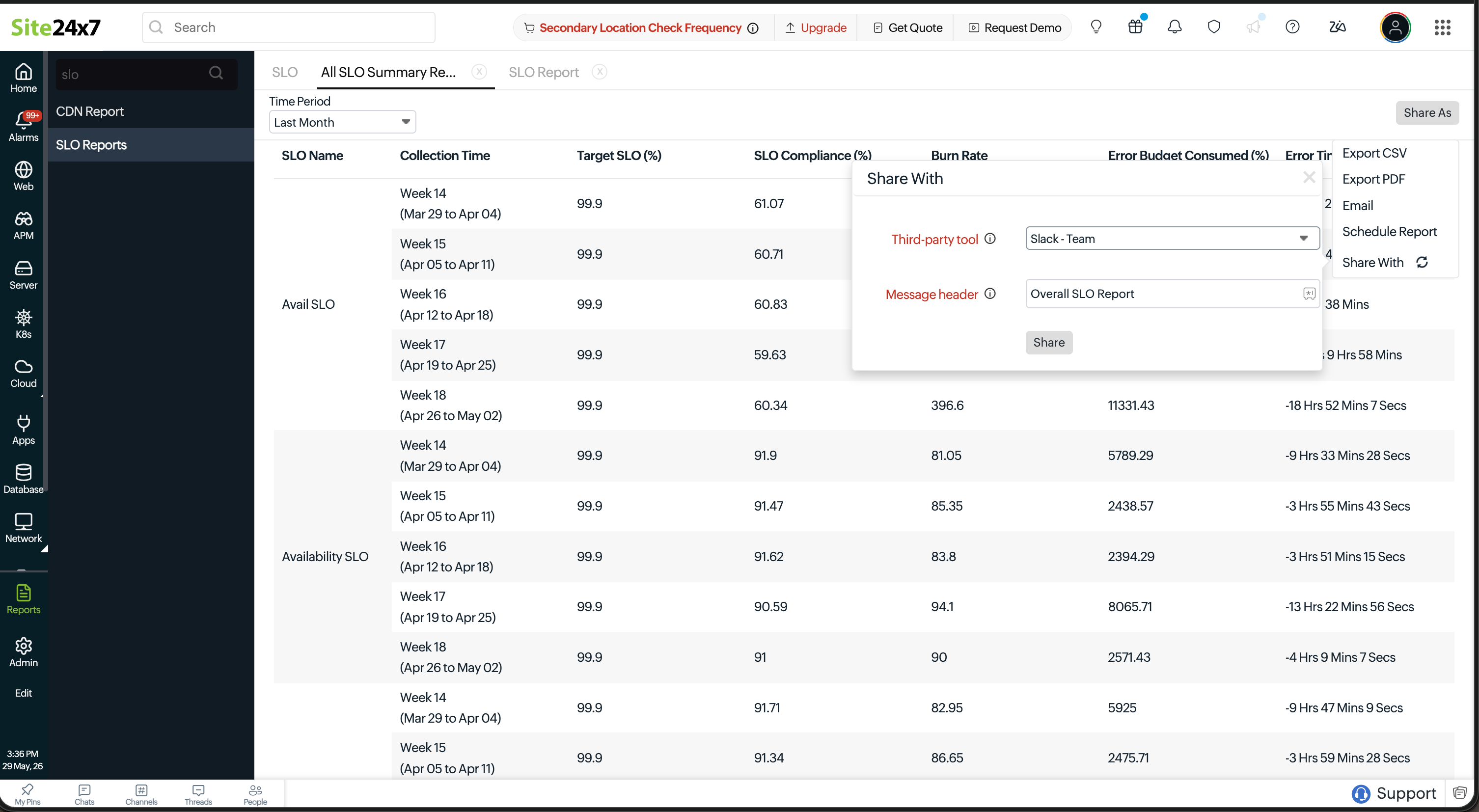
- This option is available for integration tools such as Slack, Telegram, and Discord.
- To verify whether the data has been successfully sent to the third-party tool, check the Logs page. This displays the status of each request and helps you confirm whether the data transmission was successful or if any errors occurred.
Create a separate integration channel for sending reports instead of using the same channel configured for alerts. Using a dedicated channel helps maintain clarity and ensures that reports are not overlooked or mixed with alert notifications.