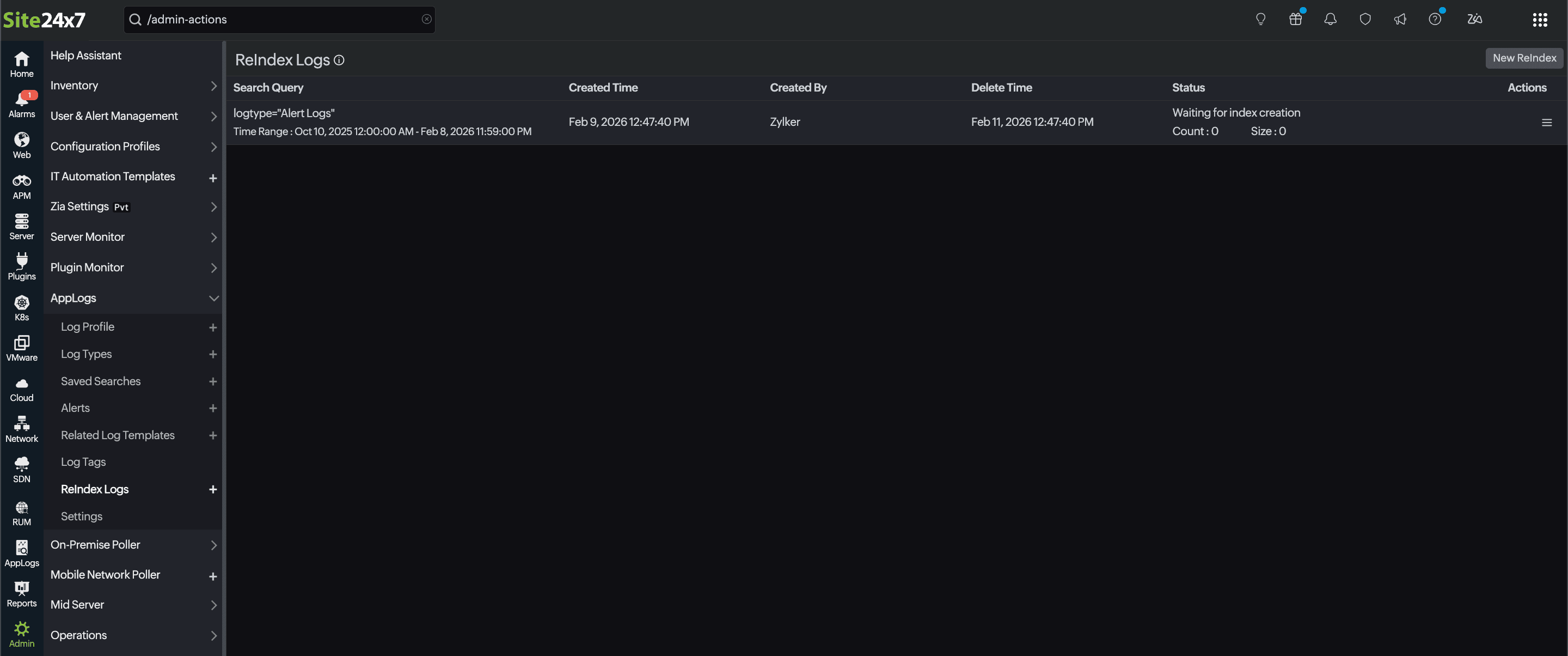
ReIndex Logs
The Site24x7 AppLogs agent collects log data from your servers and stores it for searching purposes for a maximum of 90 days. During this 90-day limit, you can configure the retention period of your logs. Once the configured search retention period ends, all log data (including raw and indexed logs) will be erased from our indexing server, and you will not be able to perform a search in the Site24x7 web client.
Users who wish to revisit the old log data for auditing purposes or to analyze performance issues that occurred in the past can reindex logs. Using the ReIndex logs feature, logs are reindexed for a specified duration, allowing you to access them from the web client.
- Site24x7 can store log data as a backup for any number of days.
- You will be charged an additional amount for extending the log storage period. This amount may vary based on the number of days and log volume.
After you drop a request to us, we will enable the option to re-index logs. Once the option is enabled, you can view your reindexed logs by following the steps below:
- Navigate to Admin > AppLogs > Reindex logs > New ReIndex.
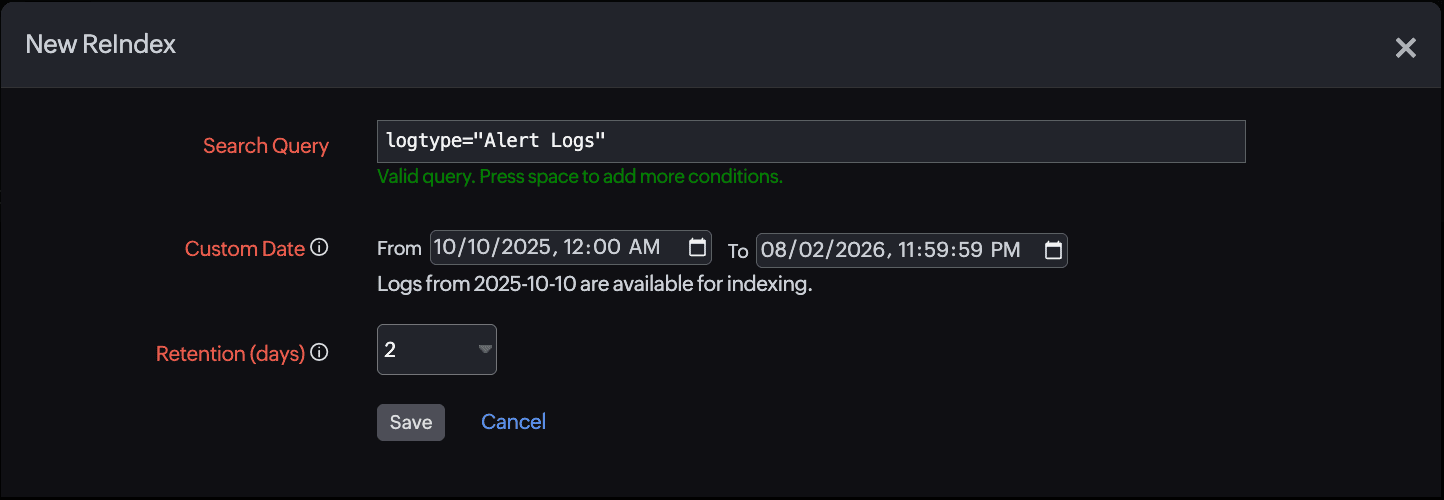
- In the pop-up that appears, enter the following into each field:
- Search Query: Enter the search query that requires reindexing.
- Custom Date: Enter the period between which the logs are to be recovered.
- Retention (days): Select the number of days the logs are to be saved. The re-indexed logs can be saved for a maximum of five days.
- Click Save.
Every time a period of logs is reindexed, it will be listed under Admin > AppLogs > ReIndex logs.